Get started
From install to an upgraded DAG folder in five steps.
Requirements
- VS Code 1.90 or newer.
- Python 3.10 or newer somewhere on the machine. The extension uses it once to create its own environment; your project's Python and Airflow install are not touched.
1. Install the extension
Open the Extensions view (Ctrl+Shift+X, or Cmd+Shift+X on macOS), search for dagshift and select Install. Or open the Marketplace page.
Every GitHub release has the .vsix attached, for
machines without Marketplace access (replace X.Y.Z with the version you downloaded):
2. Open a folder with DAGs
Open the folder that holds your dags/ (or any Airflow code). dagshift starts on its own when it sees DAG
files, airflow.cfg or a dagshift.toml.
The first time, it sets up its engine in VS Code's storage. This takes about 20 seconds and happens once per extension version. Then it scans the workspace: findings appear in the Problems panel and in the Airflow Upgrade view in the Activity Bar, and every file that can be updated gets a CodeLens at the top.
Nothing is written yet
Scanning only reads files. Nothing changes until you preview and apply.
3. Check the versions
The status bar shows where the project is and where it is going, for example
Airflow 2.10.5 → 3.3. Click it to change either one.
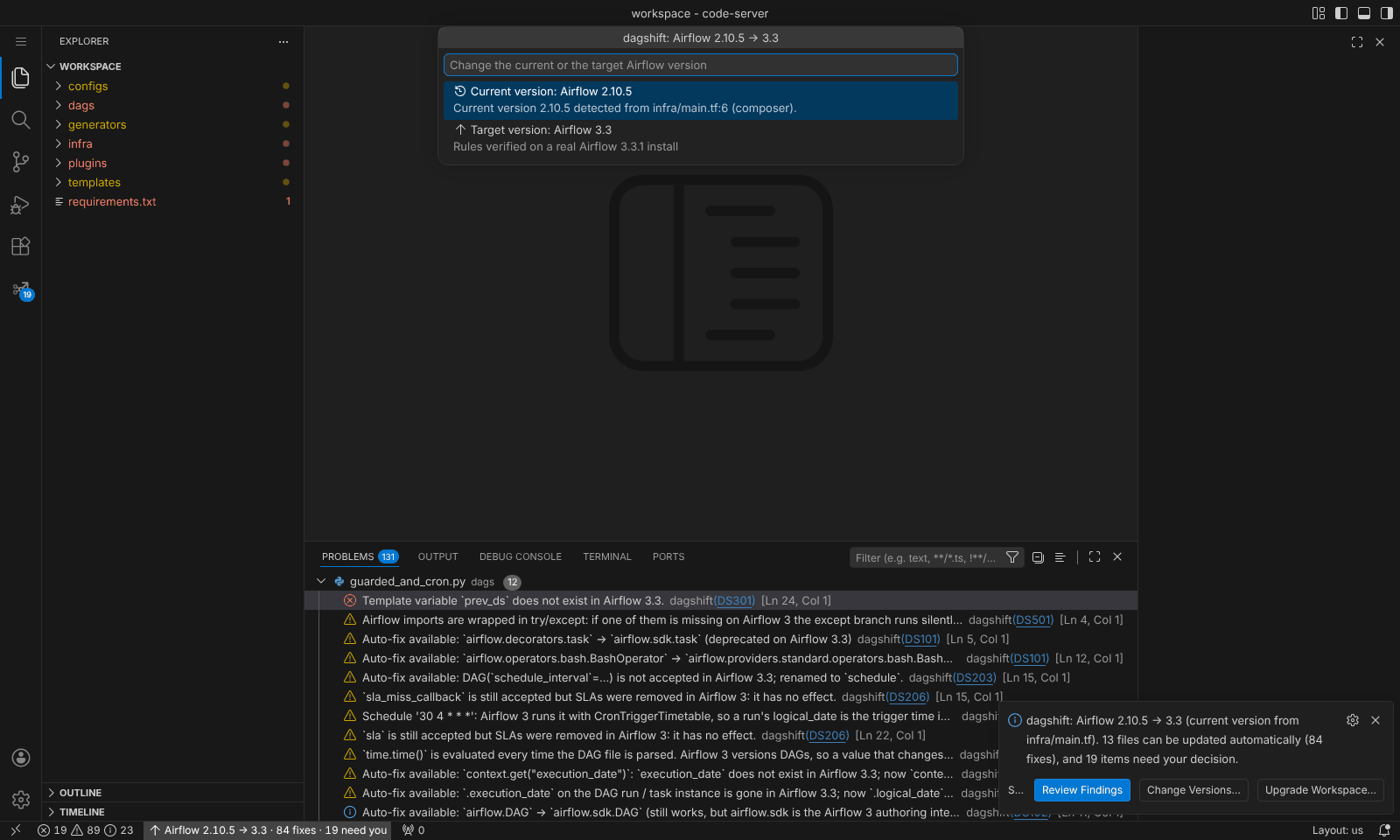
The current version is detected from the project. If the environment is defined in another repository, see Current and target version.
4. Review and upgrade
Red findings need a decision from you; hover one for the recipe. Everything else dagshift can fix.
- One file: select Preview in the CodeLens to see the diff, then Apply.
- Everything: run dagshift: Upgrade Workspace... from the Command Palette and choose whether to edit the files in place or write an upgraded copy to a separate folder.
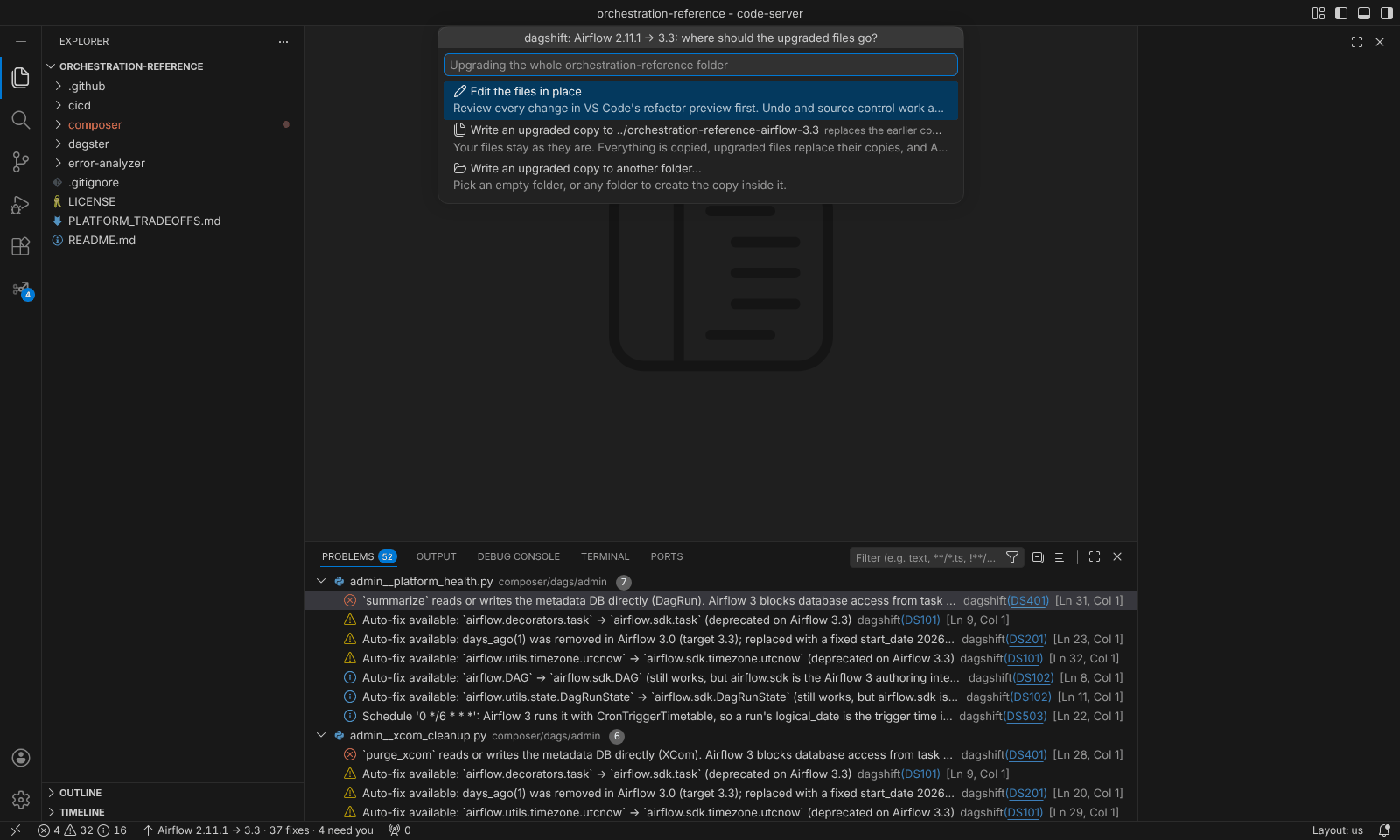
Details in Preview and upgrade.
5. Validate on the target Airflow
Static rules cannot see values injected at render or run time. Run dagshift: Validate DAGs on Target Airflow... to load the upgraded DAG folder with the target Airflow's own DagBag. See Validate on real Airflow.
Guided tour
The same steps are available inside VS Code: Help > Welcome, then Upgrade Airflow DAGs to a newer Airflow under Walkthroughs.