Review findings
After a scan, every finding is in two places: the Problems panel, and the Airflow Upgrade view in the Activity Bar, grouped by file. Files that dagshift can update also get a CodeLens at the top with Preview and Apply.
What the colors mean
| In the editor | Kind | Meaning |
|---|---|---|
| Error | needs you | Breaks on the target and has no safe automatic rewrite (for Airflow 3: metadata DB access, SubDAGs, Flask plugins). A recipe is attached. |
| Warning | auto-fix | Breaks or is deprecated on the target, and dagshift rewrites it without changing behaviour. The message starts with Auto-fix available. |
| Warning | behaviour change | Still imports, but behaves differently on the target (for Airflow 3: cron timetables, parse-time values). |
| Information | note | Worth knowing before cutover, or an import that still works and is only modernized. Hide notes with dagshift.showInfo. |
In the rules reference these are called manual, fixed, warn and info.
Recipes for what cannot be fixed automatically
Hover a red item, or select Show How to Fix in the Airflow Upgrade view, for a concrete recipe. For
example, ORM queries against TaskInstance become a call to the Task SDK's get_task_states.
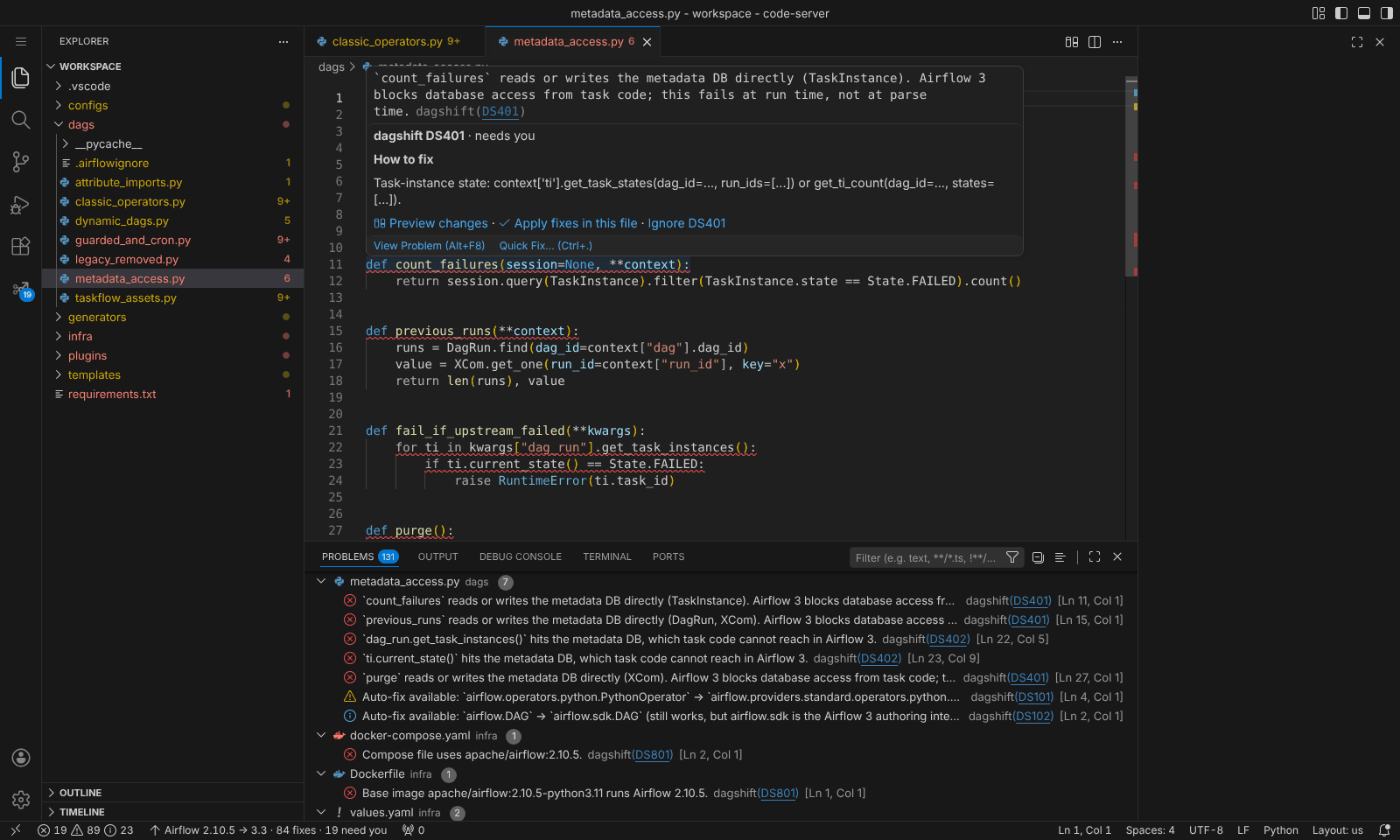
Every rule, with a before/after example produced by dagshift itself, is in the rules reference.
Turning rules off
- One rule in this workspace: right-click the finding in the Airflow Upgrade view and select
Ignore Rule in This Workspace. This adds it to
dagshift.ignore. - One line: add a comment such as
# dagshift: ignore[DS102]to the line. - For the whole team: add
ignore = ["DS102"]todagshift.tomlor[tool.dagshift]. - Only some areas: set
dagshift.selectto prefixes such as["DS1", "DS2"].
To skip folders entirely, use dagshift.exclude with globs relative to the workspace folder, for example
["tests/*", "scratch/*"].